A macOS switcher
that works your way.
Saltabo gives your Mac a switcher that's easier to use and makes more sense. Choose how it looks, what it shows and which keys drive it. Then press ⌘Tab and go straight to the window you need.
14-day free trial with every Pro feature · Free plan after that · macOS 13+
 AppSwitcher.swift — Saltabo
 Pull request #128 · Review
 ~/projects — zsh
 Inbox — 3 unread
 Team chat
Make the switcher yours.
Set it up once to match how you work. After that, switching just feels obvious.
Your shortcut
Hold ⌘, ⌥ or ⌃ with any trigger key you like. Tab is the default, and Shift goes backwards.
Your look
Thumbnails, app icons or a list. Small, medium, large or auto size. Light, dark or follow the system.
Your order, your filters
Sort by recently focused, recently launched or name. Choose whether minimized, hidden and fullscreen windows show up.
Per app or per window
Keep one item per app, or list every window on its own so two browser windows never hide behind each other.
Current screen or all screens
Show only what's on the screen you're using, or everything. Saltabo follows the Space you're in.
Supports 10 languages
English, Vietnamese, French, German, Spanish, Japanese, Simplified Chinese, Korean, Portuguese and Italian.
Dock previews
Hover an app in the Dock to see its windows, then click one to jump to it. Set the size, distance and titles.
Excluded apps
Keep the apps you never switch to out of the way.
Ultimate control
Close or minimize windows from the switcher, or press / while the switcher is open and type an app or window name.
Three ways to see your windows
Pick the switcher style that suits how you work. You can change it any time in Settings → Appearance.
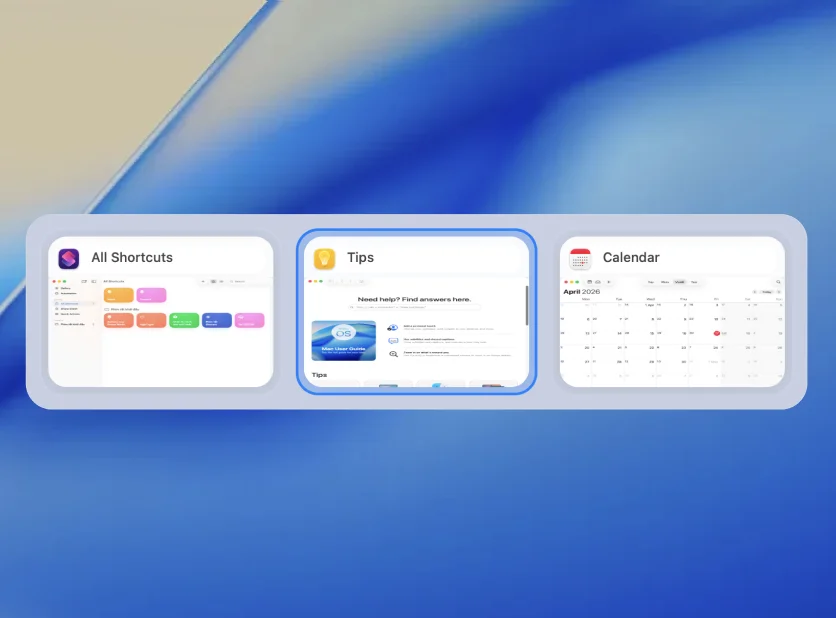
Screenshot from Saltabo's Settings → Appearance.
Up and running in a minute
Download & install
Unzip Saltabo and move it to Applications. If you open it from somewhere else, the app offers to move itself.
Grant two permissions
Accessibility lets Saltabo raise the exact window. Screen Recording lets it draw window thumbnails. Both stay on your Mac.
Press ⌘ + Tab
Hold ⌘, tap Tab to cycle and release to jump. Change the shortcut, style and filters from the menu bar icon → Settings.
Frequently asked questions
Is Saltabo free?
Yes. Every install starts with a 14-day trial of all Pro features. When the trial ends, Saltabo switches to the Free plan and the switcher keeps working. Pro only unlocks Dock previews, search, close/minimize and excluded apps.
Do I pay once or every year?
Pro is a yearly plan: $4 per year (regular price $9). If you stop renewing, Saltabo goes back to the Free plan and the switcher keeps working.
How do I activate Pro?
After checkout, you get your license key by email. Open Saltabo → Settings → License, paste the key and click Activate.
I lost my license key. How do I get it back?
Sign in to the customer portal at polar.sh/saltabo/portal with the email address you used to buy Saltabo. Your license keys and activations are listed there.
Can I move my license to a new Mac?
Yes. Deactivate it in Settings → License on the old Mac, then activate it on the new one.
Which Macs are supported?
macOS 13 Ventura or later, on both Apple Silicon and Intel Macs.
Why does Saltabo need Accessibility and Screen Recording?
Accessibility lets Saltabo list your windows and raise the exact one you pick. Screen Recording lets it capture window thumbnails. Thumbnails stay on your Mac.
Can I get a refund?
Yes. We offer a 14-day no-questions-asked refund on all paid plans.
Try Saltabo now.
You get every Pro feature for 14 days. After that, the switcher stays free.
Requires macOS 13 Ventura or later · Apple Silicon & Intel